

 ChatGPT
 Claude
 Perplexity
 Grok
GrokTo overlay multiple calendars in one view, add them under “My calendars” or “Other calendars” in Google Calendar. They render as colored layers on the same grid. The limit: Google Calendar overlays calendars within ONE account at a time. To overlay calendars across accounts (work + personal, multi-org) or across Google + Outlook, you need a layer on top.
The search volume for “overlay calendars” is up 900% year over year. The reason is not glamorous: more people work across more accounts, and the native single-account overlay no longer covers the real workflow. This guide shows how to do it inside Google Calendar today, where it breaks the moment your second account joins the picture, and the four tools that solve cross-account overlay in 2026.
What overlaying calendars actually means
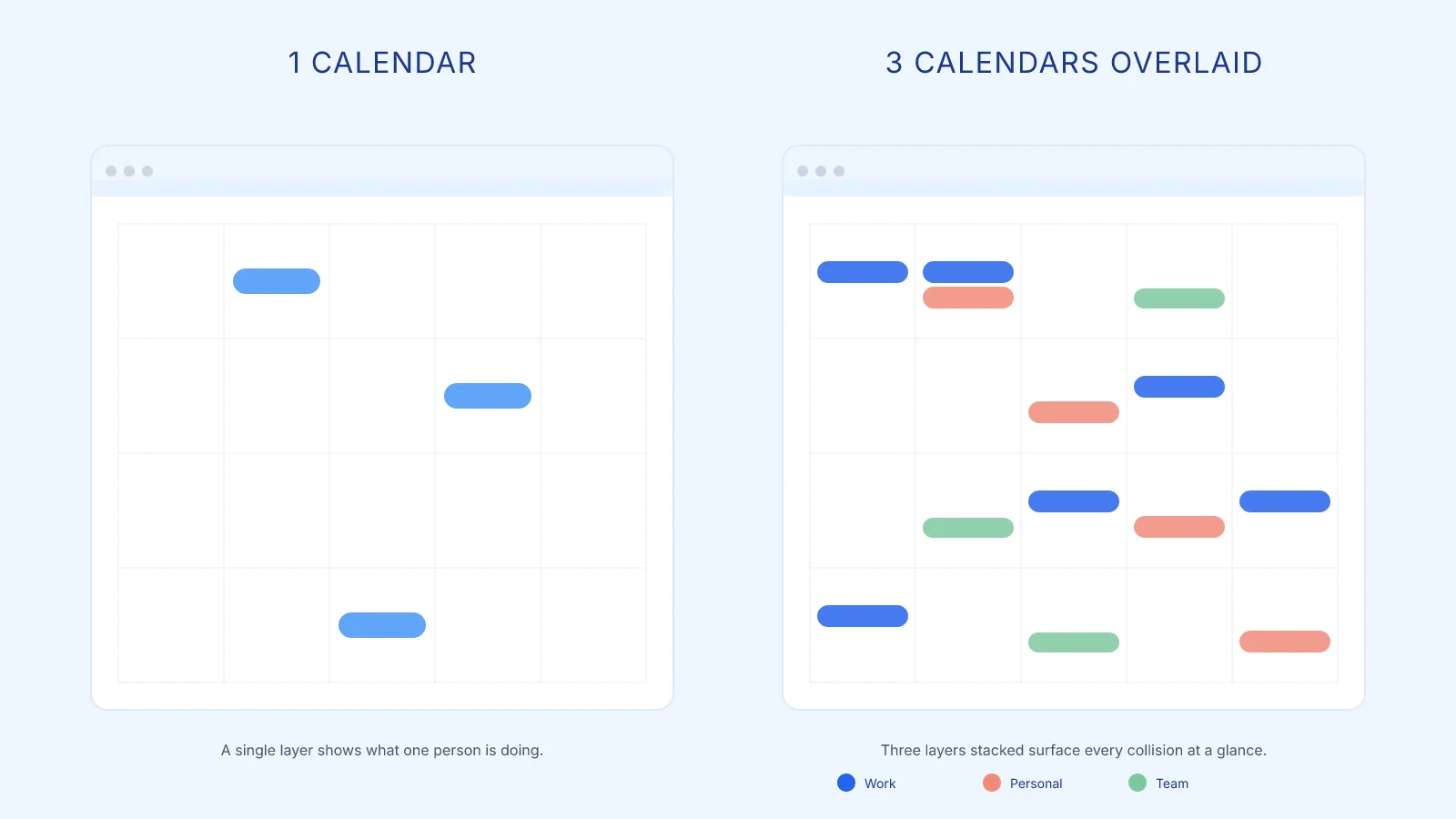
Overlaying calendars means rendering several calendar layers on the same grid, with each layer in its own color, so events from different sources sit on top of each other on the same day cells. It is the opposite of switching between separate calendar tabs.
Three things follow from that definition :
- Layers are stacked, not concatenated: events from layer A and layer B may sit on the same time slot and visually overlap, which is the point ; you want to see the collision.
- Each layer keeps its color: the color is how you tell “this slot is a client meeting” from “this slot is the kid’s pickup” at a glance.
- Layers stay toggleable: turning a layer on or off is one click, so you can answer “what does the week look like if I ignore personal events” in 2 seconds.
The opposite pattern (separate tabs per account) is not an overlay. Two browser windows side by side is not an overlay either. Overlay is one grid, multiple layers, one glance.
How to overlay multiple calendars in Google Calendar today
Google Calendar handles overlay well as long as every calendar belongs to the same Google account. The flow takes about a minute.
1. Open the calendars panel
Open Google Calendar at calendar.google.com. The left sidebar shows two sections : My calendars (calendars you own) and Other calendars (calendars shared with you or subscribed via URL).
If the sidebar is collapsed, click the hamburger icon top-left to expand it.
2. Tick the calendars you want to overlay
Each calendar in the sidebar has a colored checkbox. Tick every calendar you want visible. As soon as a checkbox is ticked, its events appear on the main grid in the calendar’s color.
You can rename a calendar’s display label, change its color (16 preset colors, or a custom hex if you click the color dot and pick “+”), and reorder calendars by drag and drop. Color discipline matters once you stack more than three layers, otherwise everything bleeds.
3. Add a calendar from your own account
If a calendar you own is missing from the sidebar, click the “+” next to “Other calendars” and pick “Create new calendar”. Give it a name (Work, Personal, Side-project), pick a color, save. The new calendar appears under “My calendars” and is overlay-ready.
4. Add a shared or subscribed calendar
Three ways to add an external calendar to the overlay :
- Someone shared a calendar with you : it appears automatically under “Other calendars” once the share goes through. Tick it on.
- Subscribe to a public calendar URL : click “+” next to “Other calendars”, pick “Subscribe to calendar”, paste the email or the .ics URL.
- Import an .ics file : click “+” next to “Other calendars”, pick “Import”, upload the .ics. This is a one-shot import, not a live subscription.
To share your own calendar so a teammate can overlay it, hover the calendar in the sidebar, click the three dots, pick “Settings and sharing”. Under “Share with specific people”, add the email and pick the permission level. “See all event details” is the right level for an overlay use case ; “See only free / busy” only shows blocks without titles, which kills the overlay value.
Once these four steps are done, every ticked calendar renders as a colored layer on every view that supports overlay : Day, Week, Month, Schedule. You can toggle any layer on or off in one click.
How to overlay multiple calendars in Microsoft Outlook today
Microsoft Outlook handles multi-calendar overlay similarly to Google Calendar, with one notable advantage : a literal Overlay mode that stacks calendars on the same grid as semi-transparent layers (Google defaults to side-by-side columns and only stacks via colored event chips).
1. Open the calendar pane
In Outlook on the web, click the calendar icon in the left navigation bar. In the desktop client (classic or new Outlook), click “Calendar” in the bottom navigation. The left sidebar shows your calendars grouped under “My calendars”, “Other calendars” and “Shared calendars”.
2. Tick the calendars and toggle Overlay mode
Each calendar in the sidebar has a checkbox. Tick every calendar you want visible. By default Outlook renders ticked calendars in side-by-side columns. To stack them on the same grid, click the small overlay arrow on each additional calendar tab (web), or use the “Overlay” view button in the View tab (desktop). Stacked layers appear as semi-transparent colors on the same day cells.
3. Add a shared or subscribed calendar
Three ways to add an external calendar to the overlay :
- From your organization : click “Add calendar” then “Add from directory”, type a colleague’s name, the calendar appears under “Shared calendars” with the permission level they granted you.
- Subscribe to a public .ics URL : “Add calendar” then “Subscribe from web”, paste the URL. Subject to the same multi-hour refresh limit as Google.
- Import an .ics file : “Add calendar” then “Upload from file” for a one-shot import.
To share your own calendar, hover the calendar in the sidebar, click the three dots, pick “Sharing and permissions”. Add the email and pick a permission level (the equivalent of Google’s “See all event details” is “Can view all details” or “Can edit”). Once added, every ticked calendar respects the Overlay toggle on every view that supports it : Day, Work week, Week, Month.
Where the native overlay falls short (both providers)
The native overlay covers the simple case in both Google Calendar and Microsoft Outlook. It breaks for four common real-world patterns, and the patterns are the same on both sides.
Limit 1 : no cross-account overlay
Google Calendar overlays calendars within a single Google account. Microsoft Outlook overlays calendars within a single Microsoft 365 tenant (or single personal account). To see your work calendar on the same grid as your personal one, or two work tenants together, you have to bridge them manually.
The Google workaround is documented in Google’s help center : add the other account as a second sign-in, switch tabs. Outlook offers the same browser-tab dance for two Microsoft 365 tenants. Switching tabs is not overlay. Some users export a private .ics URL from one side and subscribe to it on the other, but updates lag (subscribed .ics calendars refresh every few hours) and you lose the ability to RSVP or edit.
This single limit is what drives most of the “overlay calendars” search traffic in 2026, identically on both providers.
Limit 2 : the two ecosystems stay siloed
Mixing Google and Microsoft on a single overlay is unsupported on both sides. Google Calendar has no native Outlook import, and Outlook does not import a Google Workspace calendar natively either. The .ics URL trick works in both directions but inherits the same multi-hour refresh and read-only behavior.
For teams that genuinely mix Google and Microsoft (acquisitions, multi-org consulting, board members from different orgs), the cross-provider overlay simply does not exist in the native calendar of either side.
Limit 3 : the Year view loses overlay clarity
Google Calendar’s Year view (the 12-mini-month mosaic) does support overlay in the sense that it respects which calendars are ticked, but it only shows dots, not event titles. At year scale, the overlay value collapses : you cannot tell which layer a given day’s dot belongs to without clicking into the day. For an honest breakdown of what the native Year view can and cannot do, see Google Calendar year view limitations.
Limit 4 : at scale, the overlay becomes a wall of color
Stack 8+ calendars on a busy week and every day cell turns into a stripe of colored chips with the actual titles truncated to two characters. Operators who manage agency clients, multi-team coordination, or family-of-org schedules hit this wall almost immediately.
There is no native way to group calendars (e.g. “show all client calendars as one tinted layer”) or to filter by tag. You can only toggle individually, one calendar at a time. At 12+ layers, the toggle list itself becomes unwieldy.
How operators work around it today
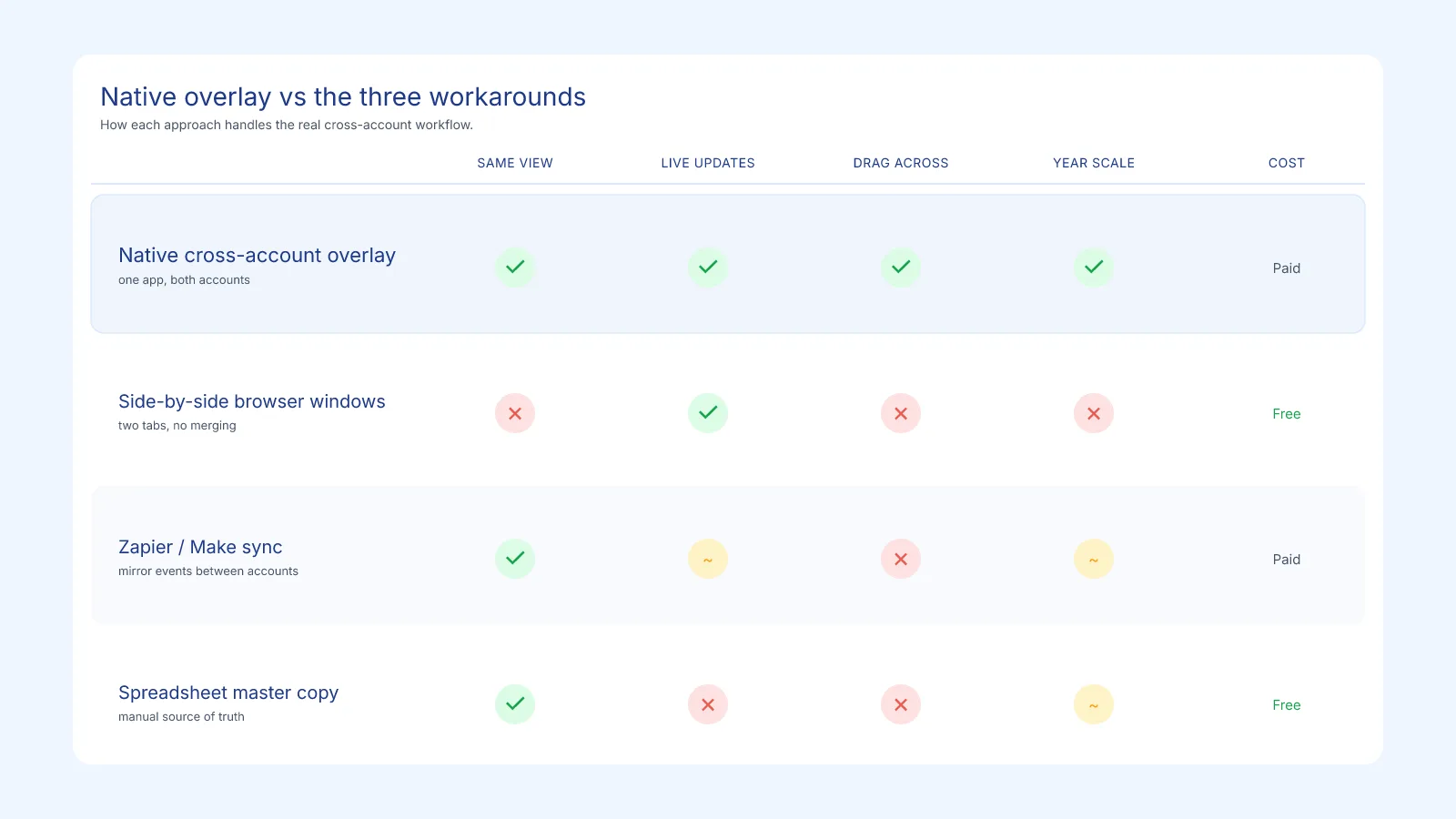
Three workarounds dominate. None of them are clean.
Two browser windows side by side. The cheapest workaround : open Google Calendar in window A signed into account 1, window B signed into account 2, arrange them split-screen. You see both. You also cannot drag an event from one to the other, lose half your screen real estate to chrome, and cannot edit a “merged” event because it does not exist as a single object. Works for read-only scanning, fails the moment you need to act.
Zapier / Make / IFTTT sync. Create a Zap that mirrors every event from calendar A into calendar B (and vice versa). Now both calendars show all events and you can overlay them. Cost: ongoing Zapier seat, latency on each sync (a few minutes), duplicate events that are tedious to clean up if you ever unhook the Zap, and edge cases on recurring events that quietly break. Most teams that try this for more than a quarter abandon it.
Spreadsheet master copy. Maintain a Google Sheet with one row per event, columns for which calendars own it, color-code manually. The sheet is the source of truth, calendars are derived. This works for very small teams with disciplined planners and breaks the moment someone adds an event directly in their calendar without updating the sheet (which is everyone, within two weeks).
The pattern : every workaround trades native simplicity for either ongoing maintenance cost, latency, or a manual habit that decays.
Tools that overlay multi-account calendars natively
Four tools in 2026 solve the cross-account overlay problem natively, without the workarounds above. The shortlist :
Fantastical is the most polished option for Apple-first teams. It connects to multiple Google, iCloud, Microsoft 365 and CalDAV accounts in one app, overlays them all on the same Day / Week / Month / Year view, and supports drag-and-drop between accounts. The trade-off : best UX is on Apple devices, the Windows app is good but the Linux and Android stories are limited. Pricing is a premium subscription per user.
Kalnext is what I built for this exact problem. It connects to Google Calendar or Microsoft Outlook (you can connect both at the same time), overlays as many calendars as you add on a real 12-month grid (not just week / month), supports drag-and-drop across accounts, layers tasks on top of events, and exports a printable A2 or A3 poster of the unified view. The 14-day free trial does not ask for a card. If you want the overlay specifically to plan a year ahead, this is the closest fit. For broader feature comparisons across yearly planners, see our 2026 yearly planners ranking and the dedicated multi-calendar yearly planning page.
Notion Calendar (formerly Cron, acquired by Notion in 2024) handles multi-Google-account overlay cleanly and integrates with Notion databases. It does not currently support Microsoft Outlook or Apple iCloud. Free with any Notion account.
Morgen.so focuses on multi-account scheduling and time-blocking. It overlays Google, Microsoft 365, iCloud and CalDAV on the same view. Stronger on the scheduling / time-block angle than on the year-view angle. Paid subscription per user.
Pick by the dimension that hurts most : Apple ecosystem → Fantastical, year-scale planning across accounts → Kalnext, Google-only stack with Notion → Notion Calendar, time-blocking discipline → Morgen.
What’s next
A clean multi-calendar overlay is the kind of thing you notice only when it is missing. If you spend more than five minutes a week switching between accounts to check whether something collides, you have already paid for a layer that handles it natively.
Start with the option that costs nothing : enable every native overlay you can in Google Calendar (your own calendars + shared teammate calendars + relevant .ics subscriptions). When you hit the cross-account or cross-provider wall, the tools above take 5 minutes to set up and a 14-day trial to validate.
For the operators planning across the full year rather than the next week, the overlay matters most on the year scale. That is also where Kalnext earns its keep : multi-account overlay on a 12-month grid, drag-and-drop across providers, no card required for the trial.