
 ChatGPT
 Claude
 Perplexity
 Grok
There is no Microsoft To Do calendar view. The closest native option is Outlook’s My Day pane, which shows tasks beside your calendar, and dragging a task onto the grid creates an event. To see tasks on their due dates across weeks or months, you need Power Automate or a third-party app.
A task due Thursday sits in To Do. The client workshop that eats Thursday afternoon sits in Outlook. Neither app puts both on one grid, so the week looks fine until you open your list on Wednesday night.
People keep asking about this on Microsoft Q&A, and the answer has not changed. A moderator put it this way in February 2026: “Currently, Microsoft To Do and Outlook do sync tasks with each other, but they do not automatically turn every new task into a calendar event.”
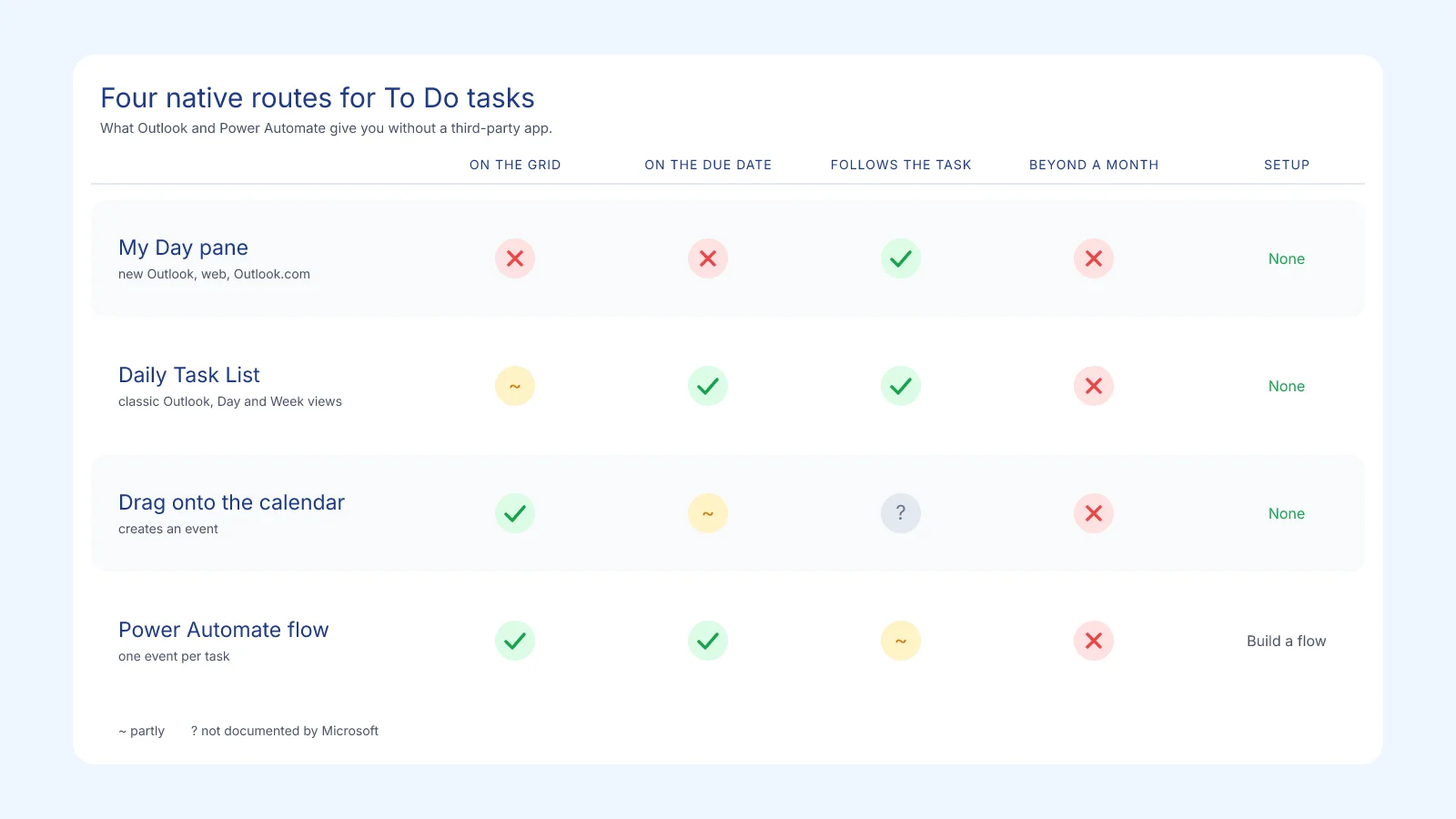
There are four ways to get close anyway, and each one stops somewhere.
Does Microsoft To Do have a calendar view?
No. To Do organizes tasks in lists, and Microsoft’s documentation describes no day, week or month grid in the app.
The nearest thing is the Planned smart list. Microsoft describes it like this: “Scheduled tasks will automatically appear in the Planned smart list, where you can see your tasks due today, tomorrow, and beyond.” You get your dates as a list, with none of your meetings in it.
Due dates stay out of Outlook’s calendar too. A due date belongs to the task, and the calendar only draws events, so a dated task never lands on the grid by itself. The same moderator again: “They will only show up on your calendar if you actually schedule them.”
How to see To Do tasks next to your Outlook calendar
Outlook is where To Do and your calendar share a window. It gives you two moves, and the steps depend on your version.
Way 1: keep your tasks beside the calendar
In new Outlook for Windows, Outlook on the web and Outlook.com, use the My Day pane:
- Go to Calendar.
- Select My Day on the toolbar at the top of the page.
- Select the To Do tab.
Your tasks now sit in a pane beside the grid, and the pane also works from Mail and People. Microsoft says “My Day is cleared at midnight every night.” Your tasks stay in their own lists, so you only lose the day’s selection.
Classic Outlook has two older equivalents:
- To-Do Bar. Select View > To-Do Bar, then Tasks. The list docks on the side of the window.
- Daily Task List. In Calendar, select View > Daily Task List > Normal. Tasks appear in a strip under each day. It works in Day and Week views, and it goes gray in Month view.
The Daily Task List is the closest Outlook comes to showing tasks on their dates, and new Outlook dropped it. A Microsoft moderator confirmed in November 2025 that it “has been removed in the New Outlook for Windows experience.”
Way 2: drag a task onto the calendar
To put a task on the grid, you turn it into an event. In new Outlook, on the web and on Outlook.com:
- Go to Calendar and open the My Day pane.
- Select the To Do tab.
- Find the task.
- Drag it to the time you want on your calendar.
Microsoft presents this as booking time: “Need to schedule a time to do a task? Use the drag feature to book time to work on it.” You get a calendar event wherever you dropped the task, and that can be days before the due date, which is usually the point.
Microsoft’s pages do not say whether the event stays linked to the task, or what happens to it when you complete the task or move its date. Treat the event as a separate item and update it by hand. A Q&A moderator also notes that classic Outlook only drags from Outlook Tasks.
Where Outlook falls short
Both moves work for today and tomorrow. Trouble starts when you plan further out.
Nothing lands on the grid by itself. Forty dated tasks means forty drags, and any task you skip stays off the calendar, which then looks lighter than your real workload.
A dragged task shows when you will work on it, while the deadline stays behind in To Do. A report blocked for Monday and due Friday reads as a Monday item.
The calendar also stops at the month. New Outlook offers Day, Work Week, Week and Month views. Even with every task dragged in, you cannot see next quarter on one screen, and next quarter is where deadlines pile up. Our Outlook calendar year view page goes through that limit in detail.
Planner does not fill the gap either. It has a Schedule view that shows tasks on a calendar, but it is a view of one plan, and your To Do lists are not in it. The option to add a plan to Outlook looks gone too: a Q&A moderator wrote in April 2026 that it was “retired without a direct replacement.” That is a forum comment, and I found no Microsoft documentation page that confirms it.
How people work around it
The simplest workaround is to copy the due date into a calendar event by hand. It takes a minute per task, and it goes stale the first time a date moves. It is worth doing for a handful of hard deadlines, such as a filing date or a contract renewal.
Way 3: build a Power Automate flow
A flow is the one Microsoft route that reacts to a new task without a drag:
- Start a flow with the To-Do connector (Business or Consumer, depending on your account) and the trigger for a new to-do in a specific folder. A folder here means a list.
- Add a condition that stops when the task has no due date.
- Add the Office 365 Outlook action Create event (V4) and map the due date to its start and end.
The flow brings its own chores:
- The trigger watches a single list, so five lists means five flows.
- Microsoft lists a polling frequency of 120 seconds for the trigger, so events can arrive a couple of minutes late.
- Moving a due date does nothing to the event unless you add a second flow on the update trigger with Update event (V4), and you have to store which event belongs to which task.
- The connector lists triggers for new and updated tasks only, so a deleted task leaves its event behind.
- You still end up in Outlook’s calendar, so the month view remains the limit.
A flow suits one list with firm dates, such as contract renewals. For a whole task system it is a lot of plumbing to maintain.
Way 4: apps that put To Do tasks on a calendar
The last option is a third-party app that reads your To Do lists. I build Kalnext, one of the four below, so read my take on the other three with that in mind. Their facts come from their own pages, read on November 6, 2026.
The first three help you plan a day or a week. Kalnext shows you the months ahead.
Morgen: block your week
Morgen’s To Do integration shows your lists next to your Outlook calendar, and you drag a task onto a time slot to block it. Its page says edits sync back to Microsoft 365, and an AI Planner proposes a daily plan for you to approve. Pick it if you block your hours and want help filling them.
Pro costs $15 per month billed yearly, or $30 billed monthly, with a 14-day trial.

Sunsama: plan one day at a time
Sunsama is built around a daily plan. You pick the To Do tasks you want today and drag them into its calendar view, and it updates To Do when you import a task or check it off. Pick it if a calm daily routine is the goal.
It costs $17 per month billed annually, or $22 billed monthly, with a 14-day trial.

Akiflow: one inbox for every tool
Akiflow merges your To Do lists with tasks from your other tools, and you time-block your day from there, next to your calendars. Pick it if your tasks are scattered across several apps.
Pro costs $19 per month billed yearly, or $34 billed monthly, with a 7-day trial.

Kalnext: see the months ahead
Kalnext lays your Outlook calendar out over 12 months and puts every To Do task with a due date on its day, next to your events, without a drag. You choose which lists to show. You can create, edit and complete tasks there, or drag one to another day to change its due date, and the change goes back to To Do. A task without a date waits in the side panel until you drop it on a day.
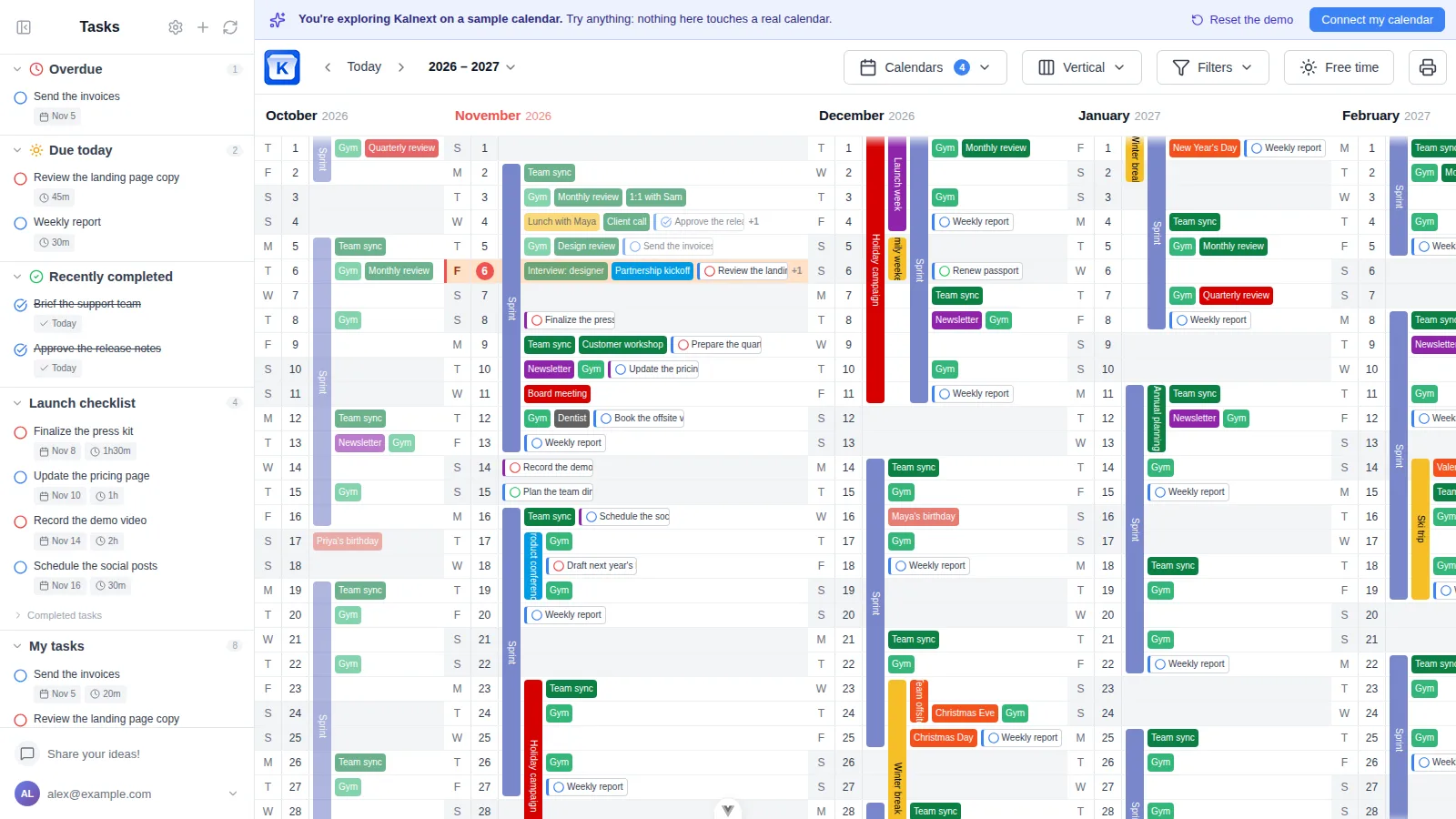
What it does not do, so you can rule it out quickly:
- Tasks sit on days, not hours. For time blocking, one of the three apps above fits better.
- Kalnext does not read To Do’s star (the importance flag) or the steps inside a task. It has its own duration and importance fields, and when you set them they are saved in a short
[kalnext]block at the end of the task’s note, which you will see in To Do. - A repeating task appears once, on its next due date. Microsoft creates the following occurrence when you complete it, so the series is not drawn across the year.
- Kalnext reads your Tasks list and the lists you created. Smart lists such as My Day, Planned and Assigned to me are not lists it can read, so Planner assignments stay out.
- The planner shows 10 task lists at a time.
- A Microsoft 365 organization can reserve app approval for its admins. Kalnext then gives you a link to send them.
Solo costs $24 per year, or $99 once, with a 14-day trial, and it connects one Microsoft account. Adding a Google account to the same view takes the Starter plan.
| Tool | Horizon | How tasks reach the calendar | Billed yearly |
|---|---|---|---|
| Morgen | Day and week | You drag them onto a time slot | $15/mo |
| Sunsama | One day | You pick them, then drag them in | $17/mo |
| Akiflow | The day | You drag them into a time block | $19/mo |
| Kalnext | Up to a full year | By themselves, on their due date | $2/mo |
Which way should you pick?
It comes down to how far ahead you need to see.
- For today and tomorrow, the My Day pane is already in your Outlook.
- For a few tasks this week, drag them onto the calendar and maintain those events by hand.
- For one list with firm dates, build a Power Automate flow.
- To fill every hour of your week, try Morgen, Sunsama or Akiflow.
- To see the next few months, you need a 12-month view of your calendar, which Outlook does not have. Our yearly planner comparison covers the options, and the annual planner method shows how to keep one up to date.
If you also juggle several accounts, the guide to overlaying multiple calendars covers that side of the problem.
To see what tasks and events look like across a year, open the Kalnext demo. It runs on sample data and asks for no account.