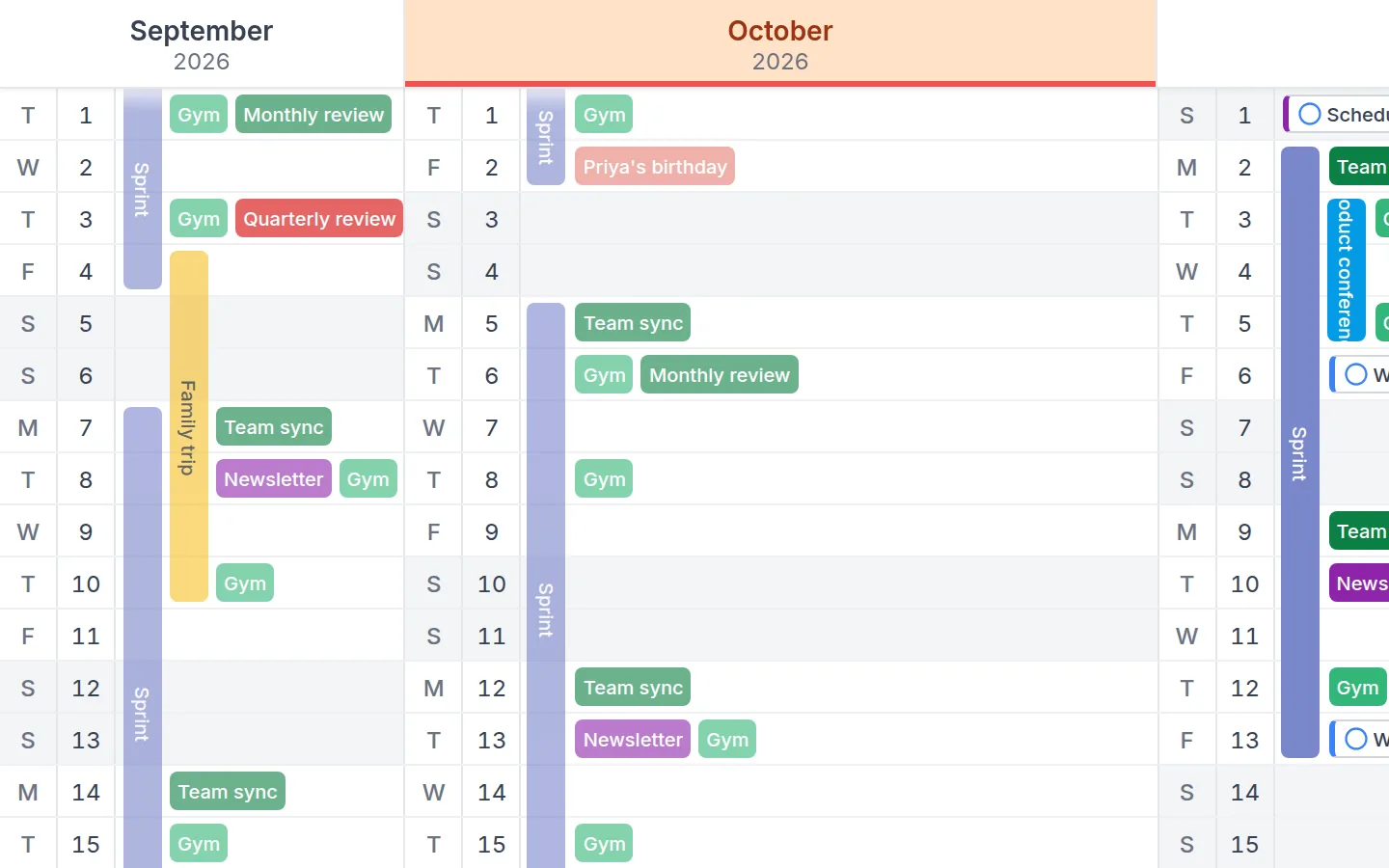
Outlook Calendar Year View with your events
Outlook shows one month at most. Kalnext lays out your Outlook calendar over 12 months, with every event by name, your categories and your Microsoft To Do tasks.
The demo runs on a sample calendar. Connect Outlook when you're ready: 14-day free trial, no credit card.
- Verified by Google
- Microsoft verified publisher
What Outlook shows you today
Every version of Outlook stops at the month. Here are the calendar views each one offers, as Microsoft's help pages list them.
| Outlook version | Calendar views |
|---|---|
| New Outlook for Windows | Day, Work week, Week, Month |
| Outlook on the web | Day, Work week, Week, Month |
| Classic Outlook for Windows | Day, Work week, Week, Month, Schedule |
| Outlook for Mac | Day, Work week, Week, Three day, Month |
| Outlook for iOS and Android | Agenda, Day, 3-day, Month (7-day in landscape) |
To look at a quarter or a whole year, you go through the months one at a time. And a month is already tight: Microsoft itself notes that the month view can get very crowded.
Views as listed on Microsoft Support, checked in October 2026.
What a year view changes
Twelve months on one screen answer questions a month can't: which weeks are already full, where the holidays fall against your deadlines, whether a project in March runs into a trade show in April.
Kalnext reads the calendars of your Microsoft account and draws them over the whole year. Outlook stays your place for email and day-to-day meetings: Kalnext adds the long view on top of it.
Your Outlook calendar, laid out over the year
Everything below works with personal Outlook.com accounts and with Microsoft 365 work or school accounts.
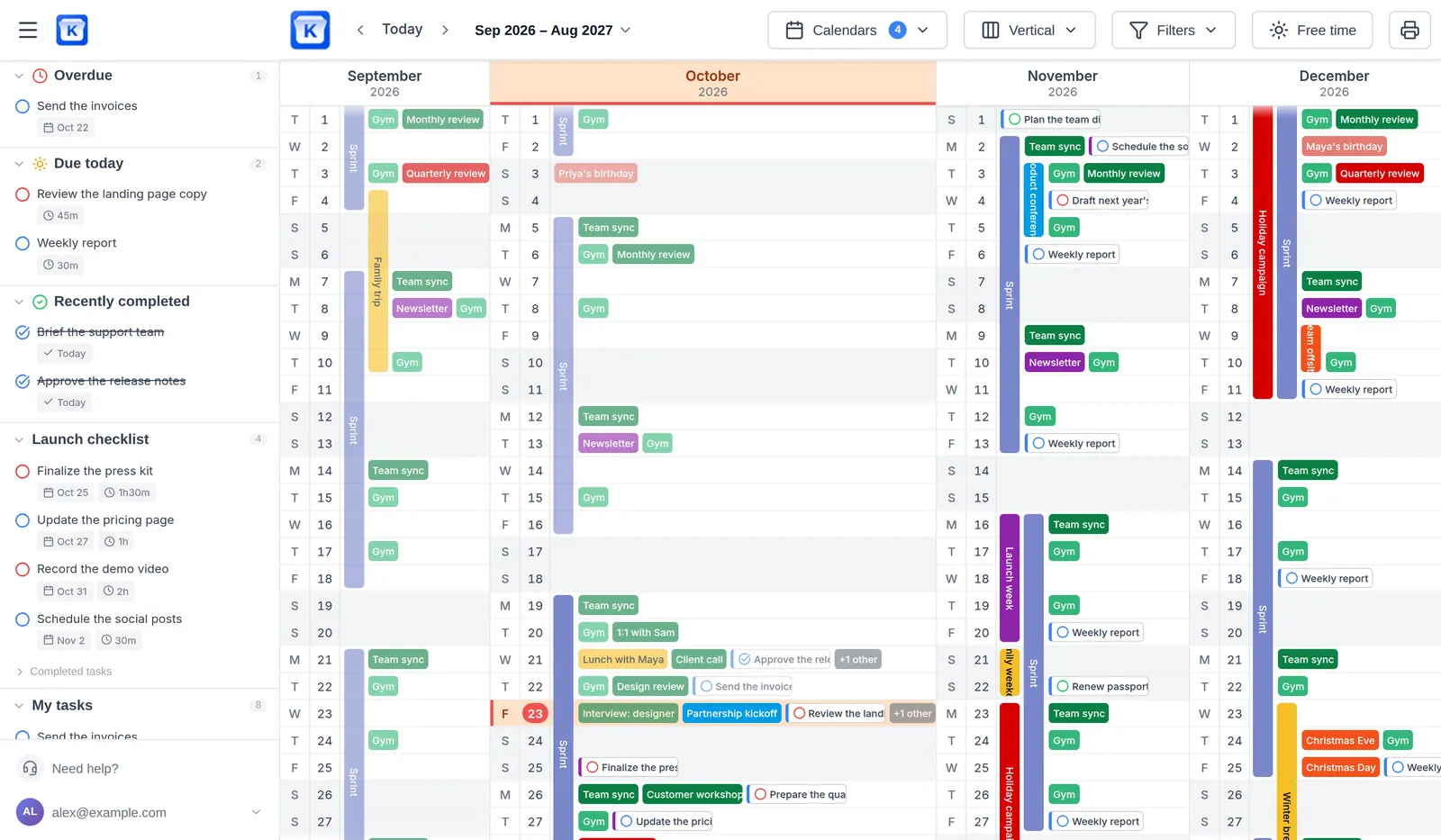
Every event by name, across 12 months
Pick the layout that fits the question: months side by side, months as rows, the whole year as a grid, or an agenda list. Each event keeps its name and its color.
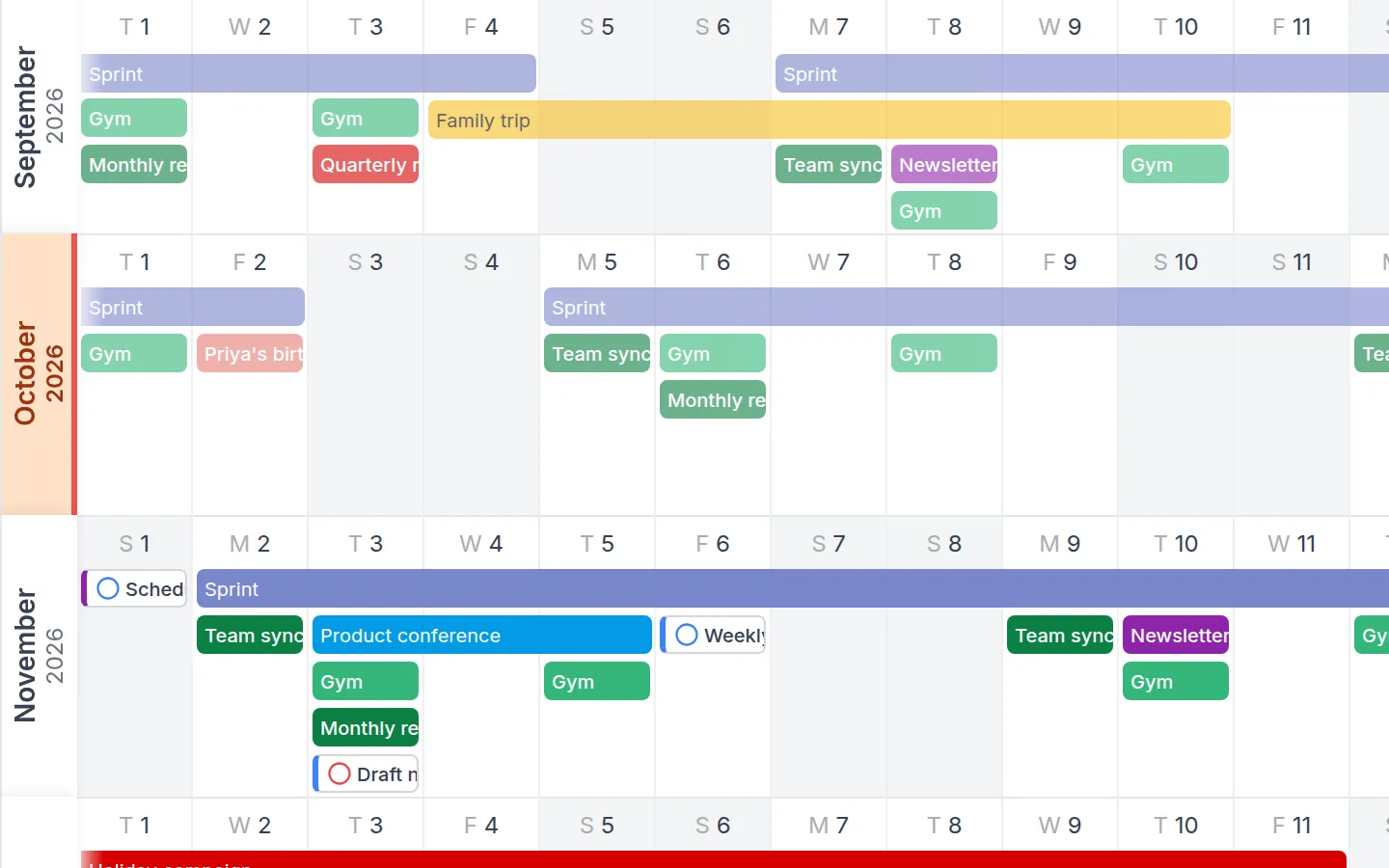
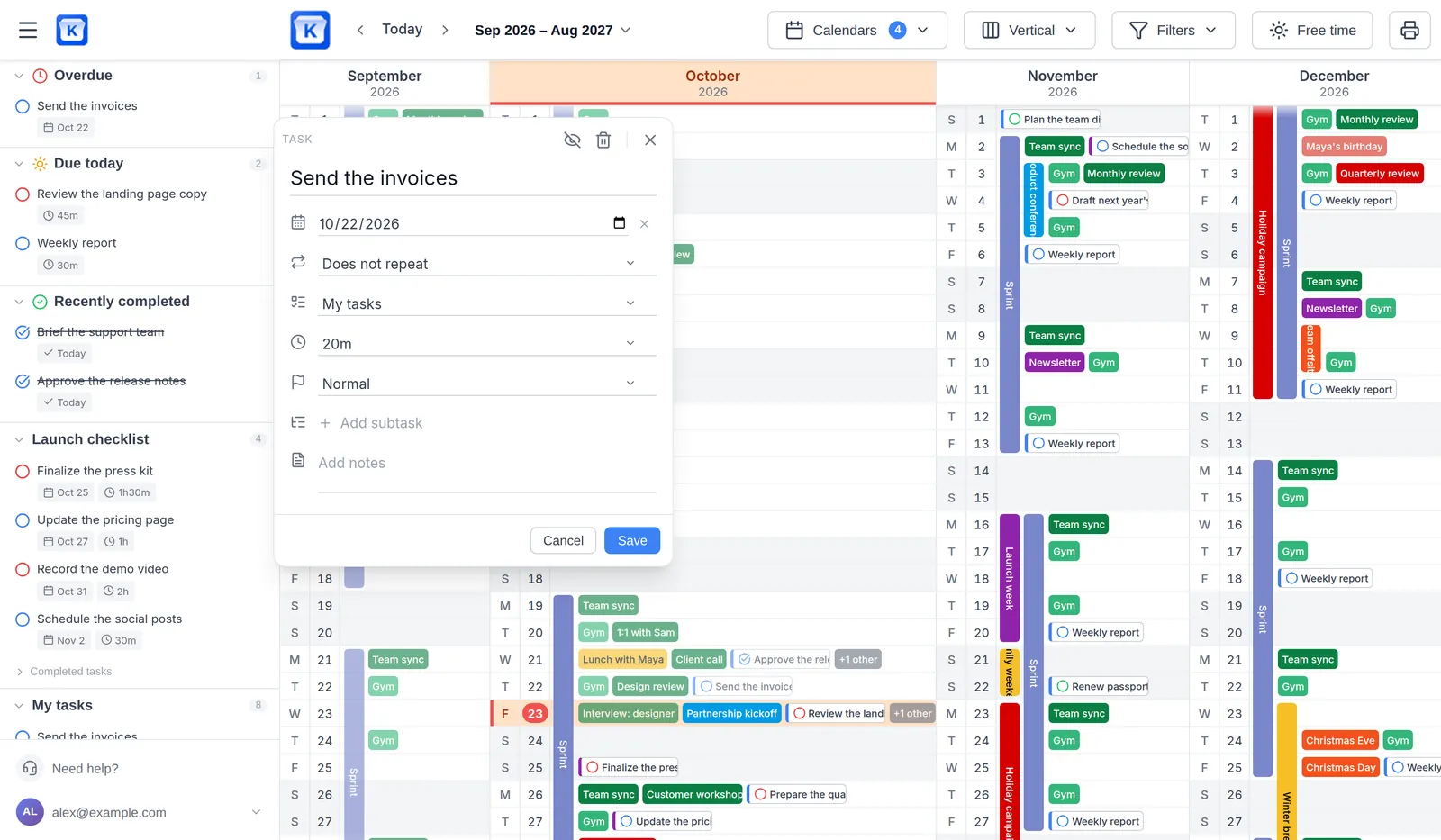
Create and edit Outlook events from the year
Add an event on any day, stretch it over several days, change its time or move it to another calendar of the same account. Kalnext writes each change to Outlook, and what you change in Outlook shows up in Kalnext.
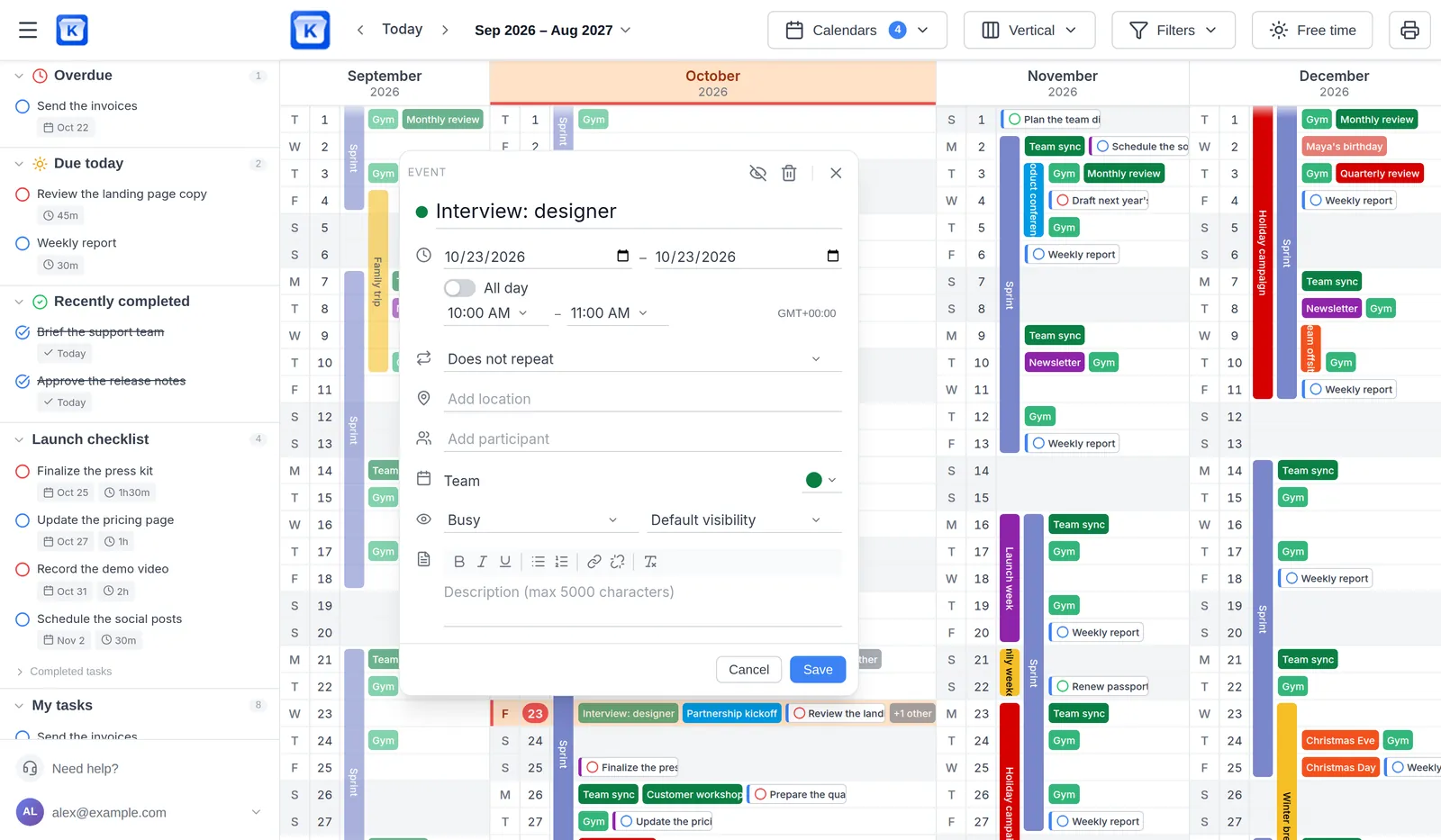
Your To Do tasks next to your events
Choose the Microsoft To Do lists to show. Tasks with a due date sit on their day, and you can create, edit and complete them without going back to To Do.
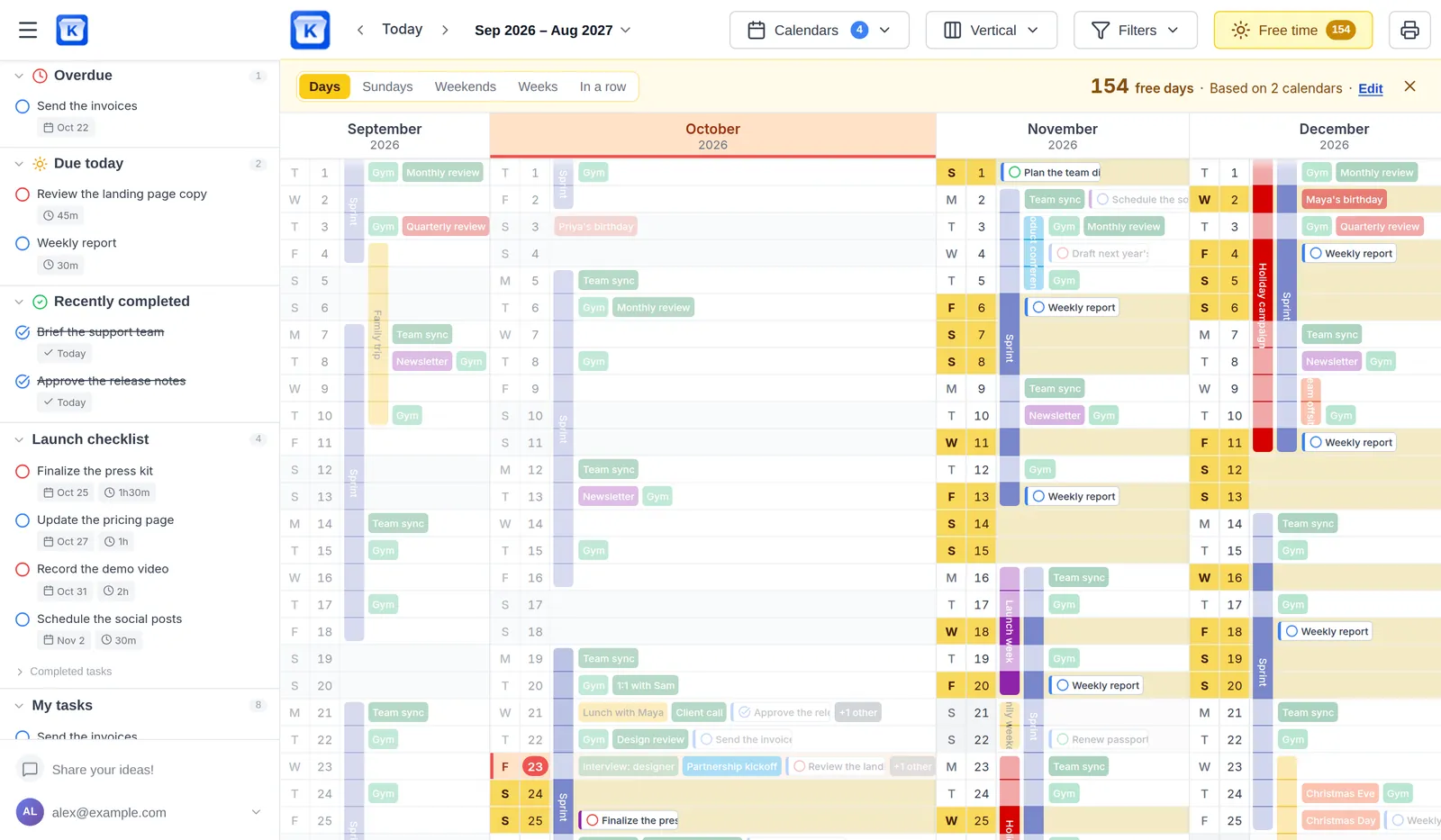
See the free weeks at a glance
Free time highlights the days with nothing booked, so a trip, a launch or a block of focused work finds its place before the calendar fills up.
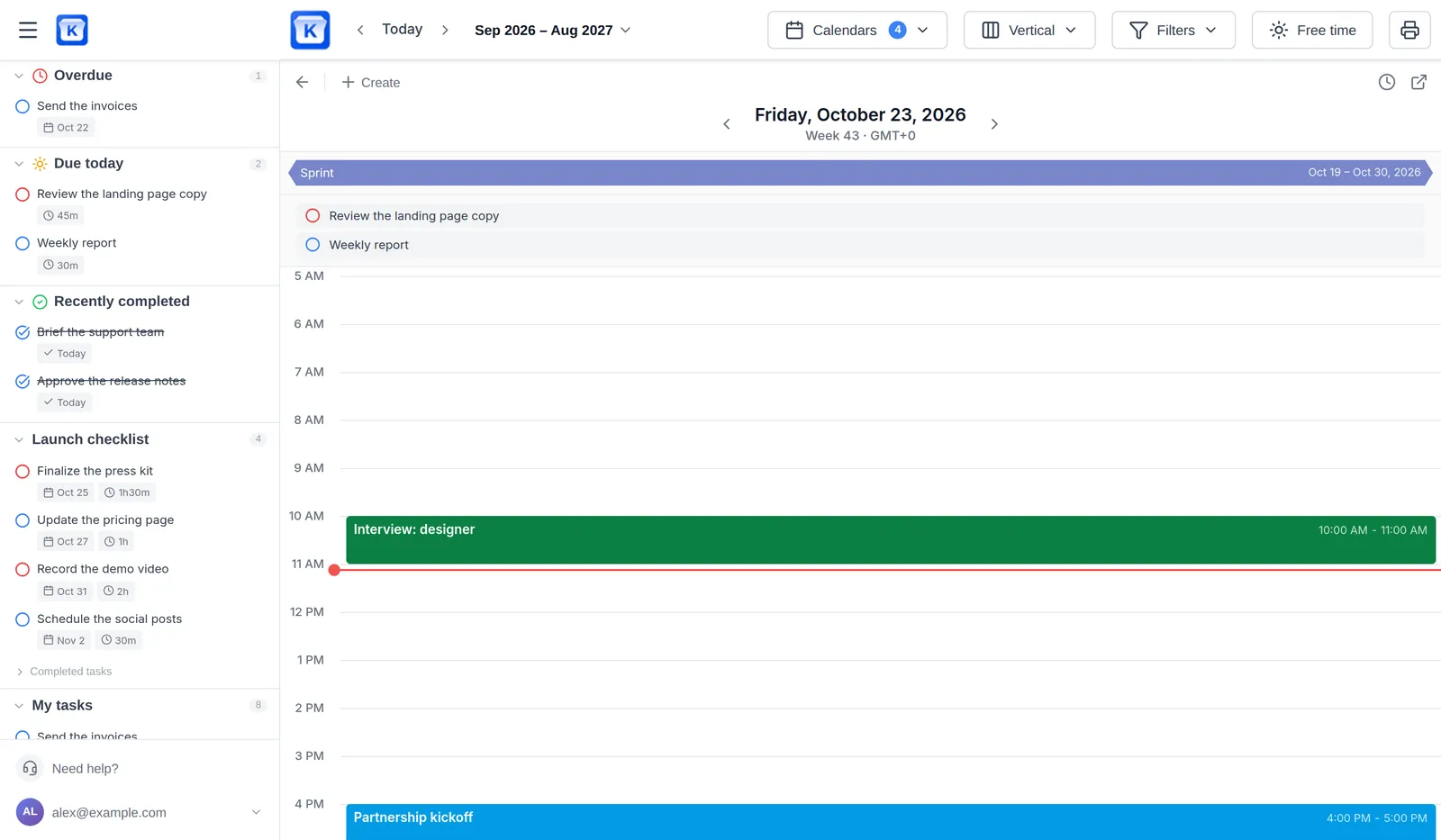
Open any day, hour by hour
Click a day of the year to see its schedule hour by hour, then go back to the year where you left it.
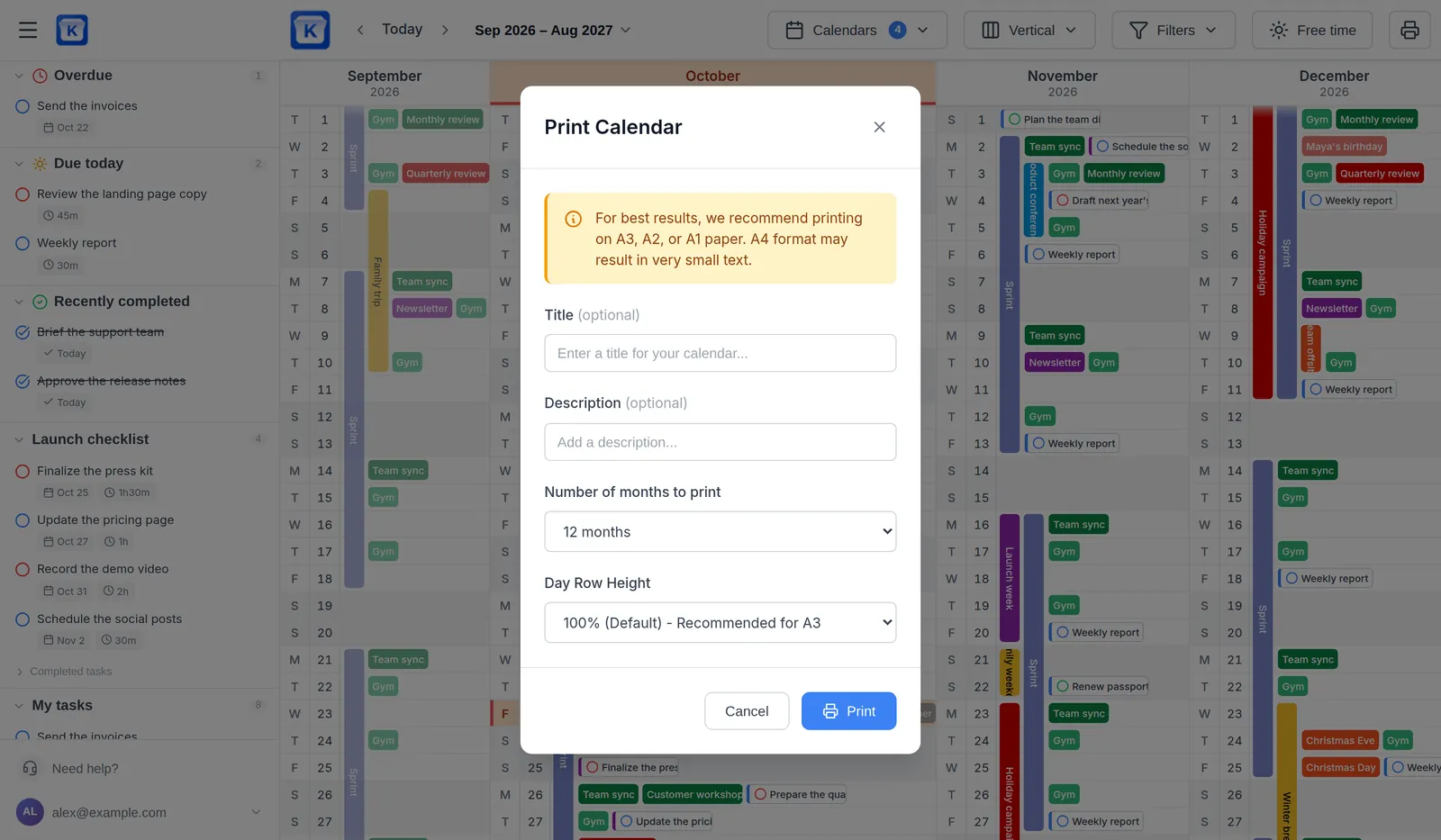
Print the year
Print a range of months in the layout you are using, for a wall planner or a quarterly review.
Also built for Outlook
Your Outlook categories as colors
Events keep the color of their Outlook category. Filter the year by category, or set the categories of an event from Kalnext, with the categories already defined in your mailbox.
Outlook and Google Calendar in one year
If you also use Google Calendar, connect both accounts: their calendars appear together in the same year view.
Three steps
Sign in with Microsoft
Use your Outlook.com account or your Microsoft 365 work or school account. If your organization asks an admin to approve new apps, Kalnext gives you the link to send them.
Choose your calendars
Pick the calendars and the To Do lists to show. You can change them at any time.
Plan the year
Add events and tasks, move them, filter by category. Every change goes back to Outlook.
Questions about Outlook and Kalnext
- Does Outlook have a year view?
- No. New Outlook, Outlook on the web, classic Outlook, Outlook for Mac and the mobile apps all stop at the month view. Classic Outlook adds a Schedule view and the mobile apps an Agenda, but neither shows a year. To see your year, you need a tool that reads your Outlook calendar.
- Which Microsoft accounts can I connect?
- Personal accounts (Outlook.com, Hotmail, Live) and Microsoft 365 work or school accounts. If your organization requires an administrator to approve new apps, Kalnext shows you the approval link to send to your IT team.
- Does Kalnext change my Outlook calendar?
- Only when you change something in Kalnext: creating, editing, moving or deleting an event or a task writes that change to Outlook. Looking at your year changes nothing.
- Can I see Outlook and Google Calendar together?
- Yes. Connect a Microsoft account and a Google account to the same Kalnext account, and their calendars share one year view.
- Can I try it before connecting Outlook?
- Yes. The demo runs on a sample calendar and needs no account. When you connect your own calendar, you start a 14-day free trial, without a credit card.
See your Outlook year
Open the demo on a sample calendar, or connect Outlook to see your own twelve months.
14-day free trial · No credit card required